Google Calendar sync with Outlook, iCloud and other Google accounts
Your work Google Calendar says you're free while your personal Gmail says you're at the dentist. AllMyMeetings copies events between them, or to Outlook and iCloud, so every calendar shows you as busy.
Connect Google Calendar free14-day Pro trial · No credit card · Free plan after
AllMyMeetings asks Google for one calendar permission (to see and edit your calendars) plus your name and email. It never reads Gmail, Drive or Contacts.
A good fit if…
- You have a Workspace work calendar and a personal Gmail calendar
- People book you from a calendar that can't see your other one
- You want copies to show only "Busy", not the event details
Not a fit if…
- You only need to view another calendar and a delay of hours is fine (subscribe to it in Google for free)
- Your Workspace admin blocks third-party calendar apps and won't make an exception
What Google's built-in options can't do
Google Calendar gives you two free ways to see another calendar, and neither one actually syncs:
- Sharing between Google accounts. Share your personal calendar with your work account and it shows up under "Other calendars". It's view-only, and your work account's availability still ignores it: a colleague using "Find a time" or a booking page sees you as free.
- Subscribing by URL (ICS). Add a calendar's secret iCal link under Other calendars → From URL. The result is read-only, one-way, and refreshed on Google's own schedule, which can be many hours. There is no refresh button.
Neither creates real events on the calendar people book you from, so neither stops double-booking. A sync tool does, by writing a copy of each event onto the other calendar.
Two-way sync with real-time push notifications
AllMyMeetings doesn't poll your Google Calendar on a timer. When you connect, it registers a push notification channel with Google for each calendar you turn on. Google calls us when something changes, and we update the copy on the other side, usually within seconds. Channels expire, so we renew them automatically, and every calendar is also re-checked at least hourly as a safety net.
With two-way sync, an edit on either side moves both. Copies carry a hidden marker naming the event they came from, so a copy is never copied back. That loop is the usual cause of duplicate events when people wire up two-way sync with scripts or Zapier. Attendees are never copied, so a synced copy never sends invitations to anyone.
Real-time push and two-way sync are on the Pro and Business plans. The free plan runs one one-way sync.
Work Workspace ↔ personal Gmail without exposing details
The most common setup is a Google Workspace work calendar plus a personal Gmail calendar. You want the dentist appointment to block your work calendar, but you don't want coworkers reading "Dentist" in the shared view.
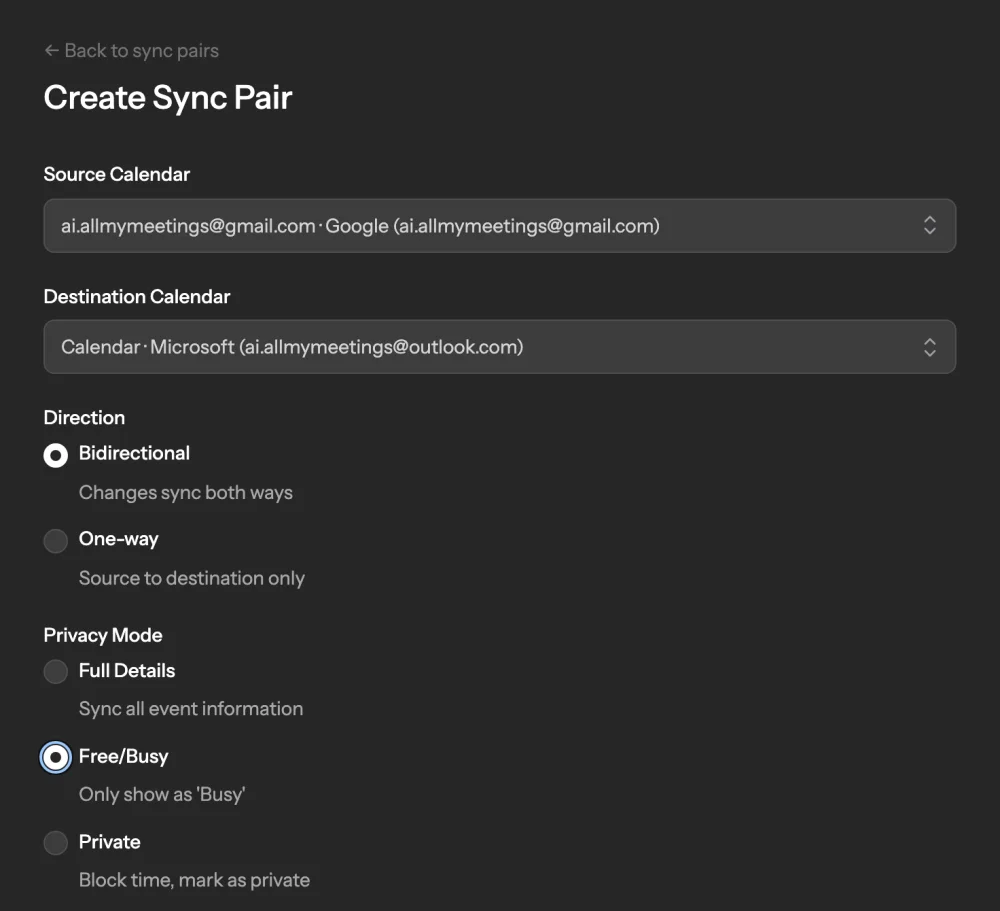
Each sync pair has a mode:
| Mode | What the copy shows | Typical use |
|---|---|---|
| Full details | Title, time, location and description | Two calendars that are both yours, such as two personal accounts |
| Free/Busy | "Busy", marked private, with the time only | Personal → work |
| Private | "Busy (Private)", time only, recurrence not copied | When even the repeat pattern is too revealing |
Free/Busy is available on every plan, including free. With two pairs, one in each direction, you can send full details from work to personal while personal goes to work as Busy only.
Shared and secondary calendars
Google accounts often hold more than one calendar: a primary calendar, secondary ones you created ("Kids", "Side project") and calendars other people shared with you. AllMyMeetings lists every calendar in your Google calendar list, so any of them can be a source.
A calendar can only be a destination if your account can edit it. Google reports this as your access role: owner or "Make changes to events" counts. View-only shared calendars and subscribed ones, such as holidays, can be synced from but not to. You choose which calendars to turn on after connecting, and nothing syncs until you create a pair.
Setup in 3 steps
- Connect your Google account. Click Connect Google Calendar and sign in. Google asks for permission to see and edit your calendars, plus your name and email. Keep the calendar box ticked: if it's unticked, the connection can't read events and we'll ask you to reconnect.
- Turn on the calendars you want. Pick from the list Google returns: primary, secondary or shared.
- Create a sync pair. Choose a source and destination (another Google account, Outlook or iCloud), one-way or two-way, and a mode. The first sync starts right away.
For the Google ↔ Outlook case step by step, including the native options, see how to sync Google Calendar with Outlook. For iPhone and Mac users, see how to sync iCloud with Google Calendar.
You can revoke access at any time from your Google Account under Security → Third-party apps & services, or by disconnecting the account in AllMyMeetings, which also removes the copies of its events from your other calendars. Our security page lists exactly what we store.
Frequently asked questions
- How often does Google Calendar sync?
- With AllMyMeetings, Google sends a push notification to our server when an event changes, so the copy on your other calendar usually updates within seconds. Every calendar is also checked at least once an hour in case a notification is missed. By comparison, a calendar you add to Google by URL refreshes on Google's own schedule and can lag by many hours, with no way to force it.
- Can I sync two Google accounts?
- Yes. Connect both Google accounts, for example your Workspace work account and a personal Gmail, then create a sync pair between a calendar in each. Choose one-way or two-way and pick a mode: Full details, Free/Busy (copies show Busy) or Private (copies show Busy (Private)). Copies carry a hidden marker, so they're never synced back and you don't get duplicate loops.
- Does it need admin approval in Workspace?
- Usually not. Most Google Workspace domains let each person connect calendar apps themselves. If your admin restricts third-party apps, Google shows an access-blocked message when you connect, and an admin has to allow AllMyMeetings under Security, then API controls, in the Google Admin console. Personal Gmail accounts never need approval.
- Is the free plan enough for two Google calendars?
- For blocking time, yes. The free plan connects two calendar accounts and runs one one-way sync in Free/Busy mode, so events from one Google calendar appear as Busy on the other. Two-way sync, full event details and more sync pairs need Pro at $5 a month. Every new account starts with a 14-day Pro trial, no card required.
Make every Google calendar show you as busy
Connect Google Calendar freeNo card. Your 14-day Pro trial starts when you connect your first calendar. The free plan stays free after.