How to sync Outlook calendar with iPhone
Your meetings live in Outlook and your life lives on your iPhone. Here's how to get the Outlook calendar into the iPhone Calendar app, and what to do when it won't show up.
Steps checked November 10, 2026 on iOS 26.5 with an Outlook.com account.
Want them to actually sync?
Adding one calendar to another only shows it, so people still see you as free. AllMyMeetings copies events as real events, or as private busy blocks.
Connect your calendars freeNo card. Your 14-day Pro trial starts when you connect your first calendar. The free plan stays free after.
Short answer: on iOS 18 or later, open Settings, then Apps, then Calendar, then Calendar Accounts, and add your Microsoft account as a Microsoft Exchange account. Sign in with Microsoft, accept the permissions, and keep Calendars turned on. Your Outlook events then show in the iPhone Calendar app and stay in step both ways. If you're on an older iOS, the same option is under Settings, then Calendar, then Accounts.
The screenshots below are from iOS 26.5 with an Outlook.com account. Microsoft 365 work and school accounts follow the same steps unless your IT department blocks them, which is covered further down.
Add the account in iOS Settings
- Open Settings, tap Apps, then Calendar. Tap Calendar Accounts (or Add Account… at the top of the page).
- Tap Add Account. iOS asks for your email address first. Tap choose from a list underneath and pick Microsoft Exchange. It works for personal and work Microsoft accounts.
- Enter your Outlook or Microsoft 365 email address. The description is just a label, such as "Work". Tap Next.
- iOS asks whether to sign in to your Exchange account using Microsoft. Tap Sign In. Only choose Configure Manually if your IT team gave you a server address.
- iOS asks for permission to open login.microsoftonline.com. Tap Continue, then sign in with your Microsoft password, authenticator app or passkey.
- Microsoft shows what iOS will be able to do: sync your mail, contacts, calendar and tasks, keep that access, and see your basic profile. Scroll down and tap Accept.
- Choose what to sync. Keep Calendars on. Turn Mail, Contacts, Reminders and Notes off if you only want the calendar. Tap Save.
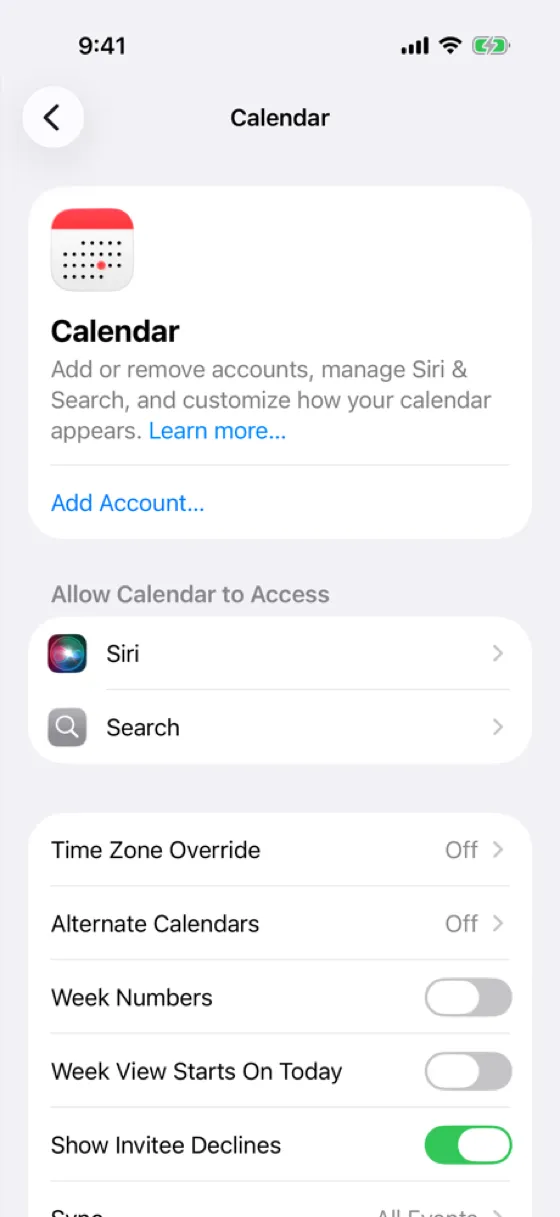
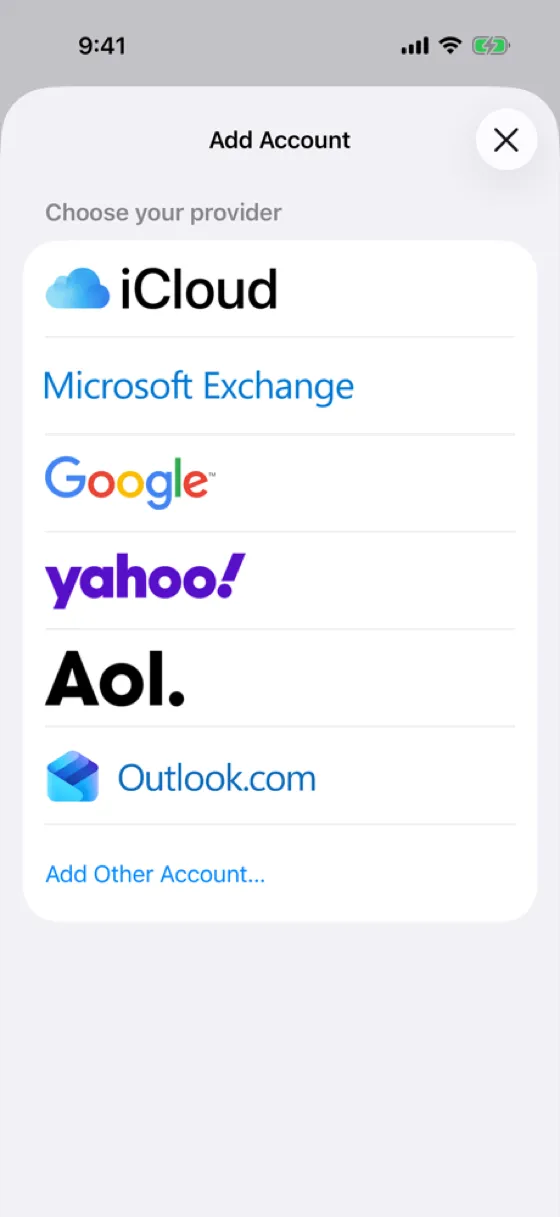
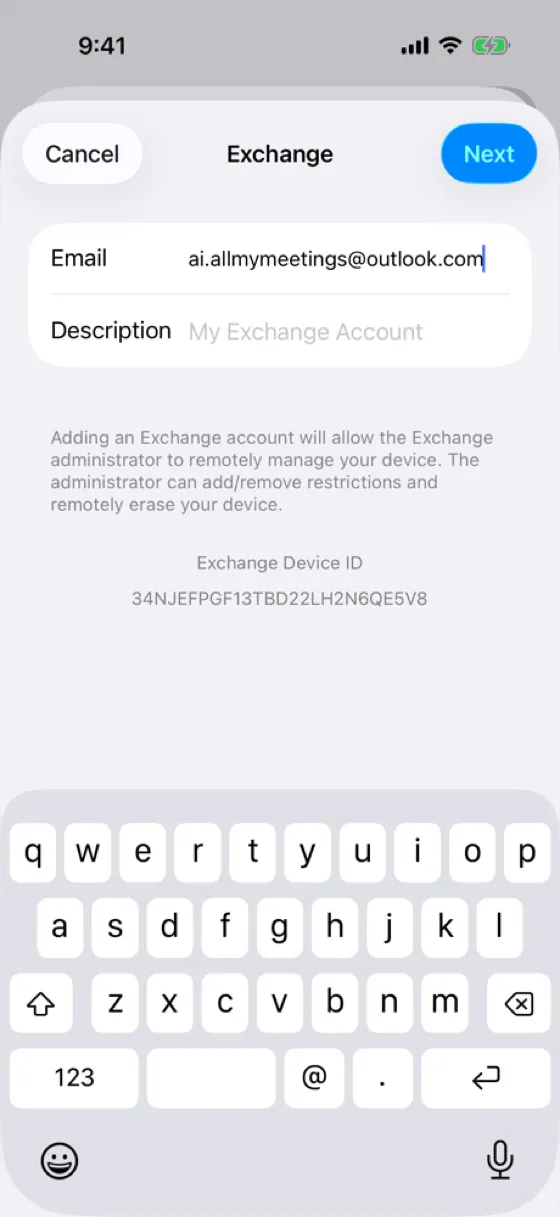
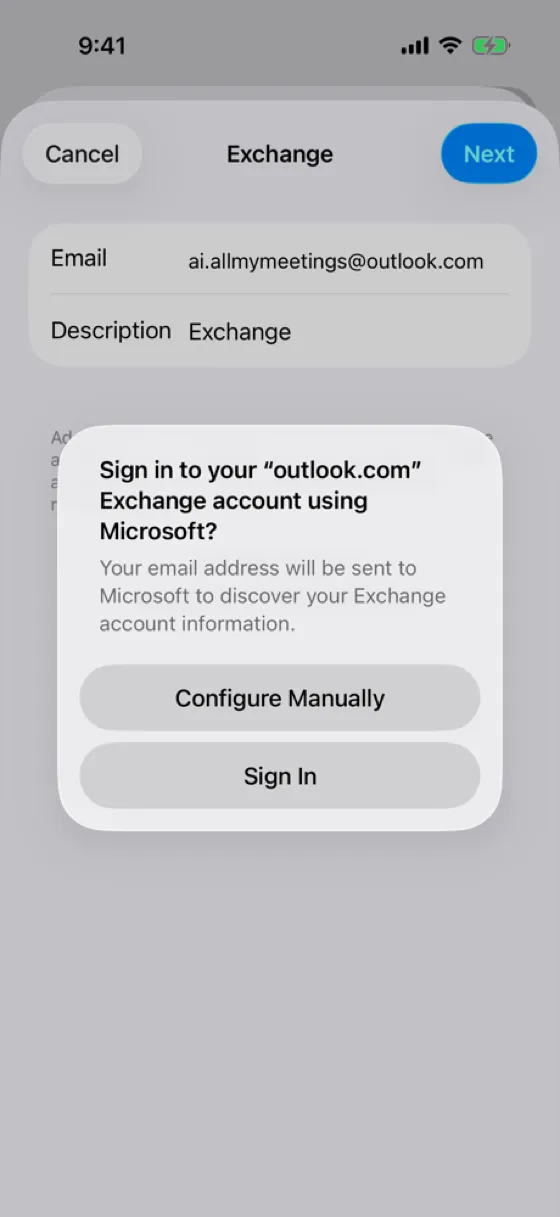
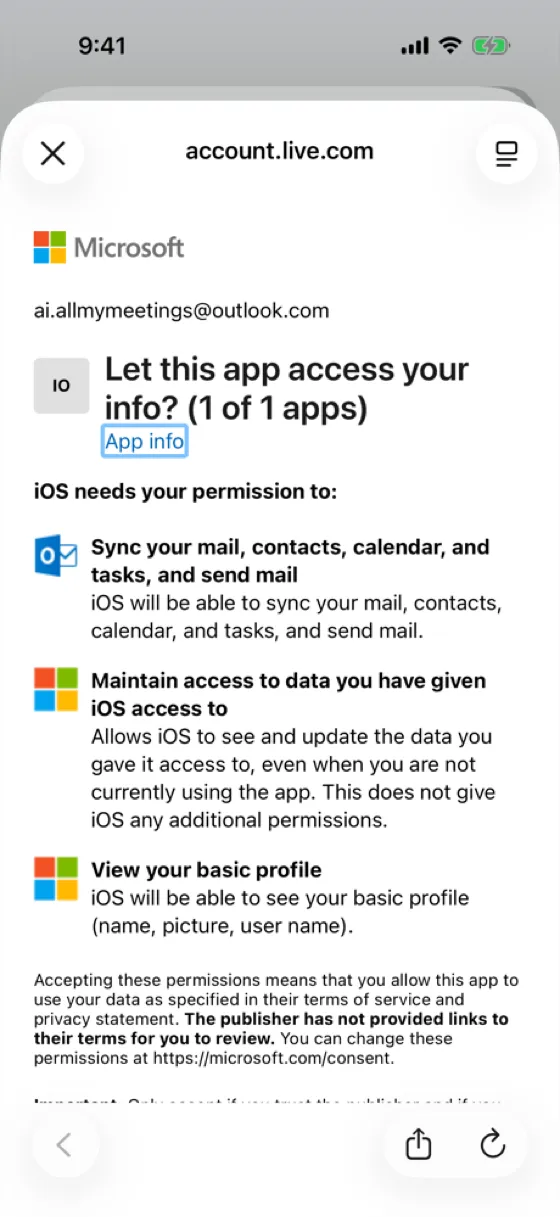
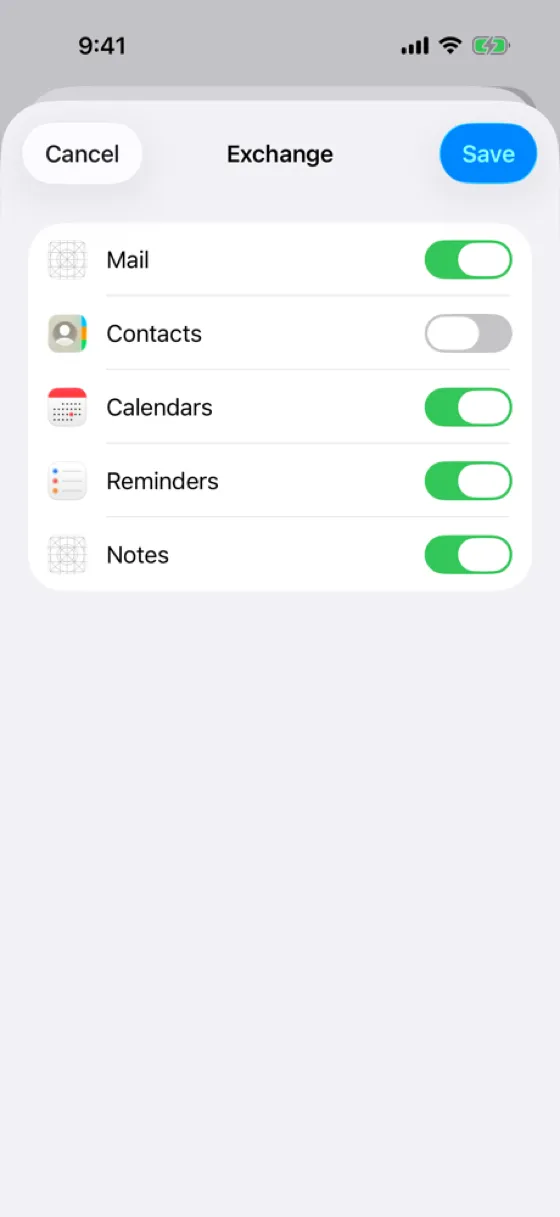
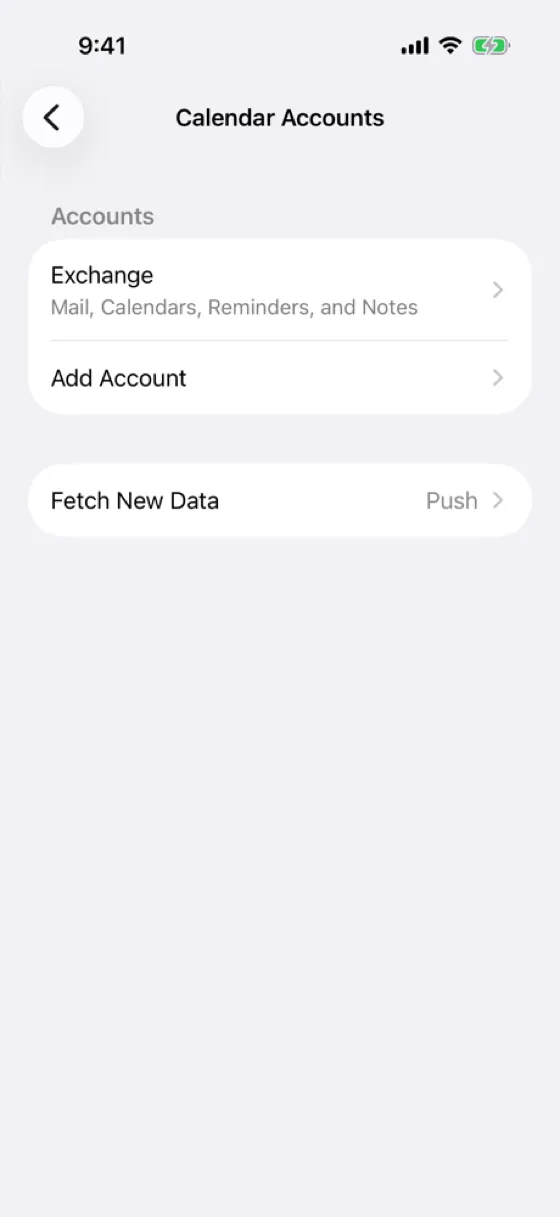
Back on the Calendar Accounts page, the new account shows as Exchange with the data types you kept on. Check that Fetch New Data says Push, so changes made in Outlook arrive on the phone within a minute or so instead of on a timer.
Open the Calendar app and tap Calendars at the bottom. Your Outlook calendar is listed under Exchange. Make sure it's ticked, and your Outlook events appear alongside everything else.
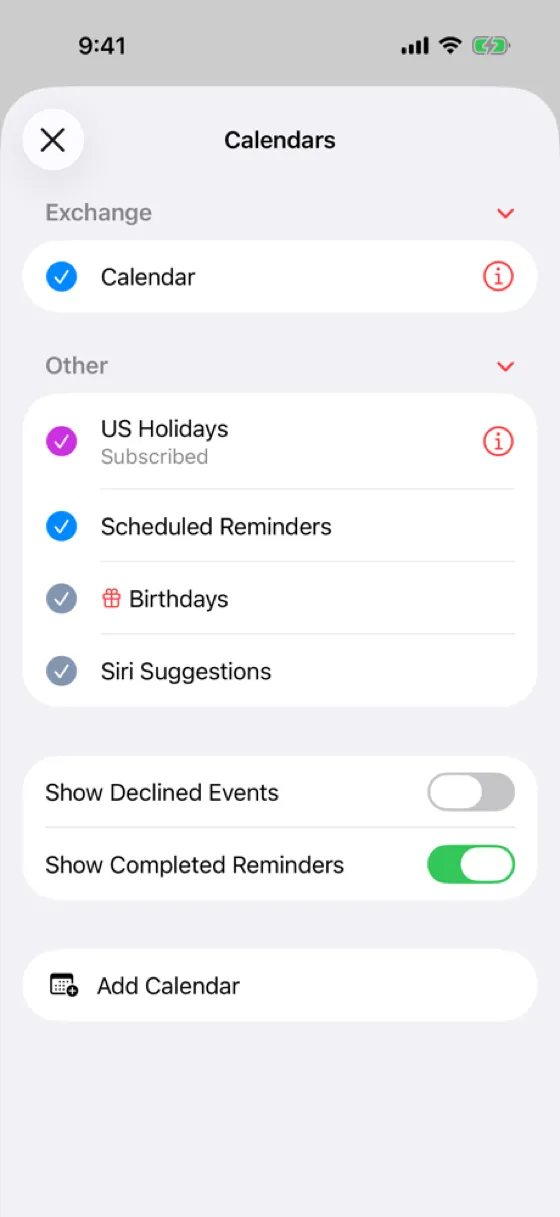
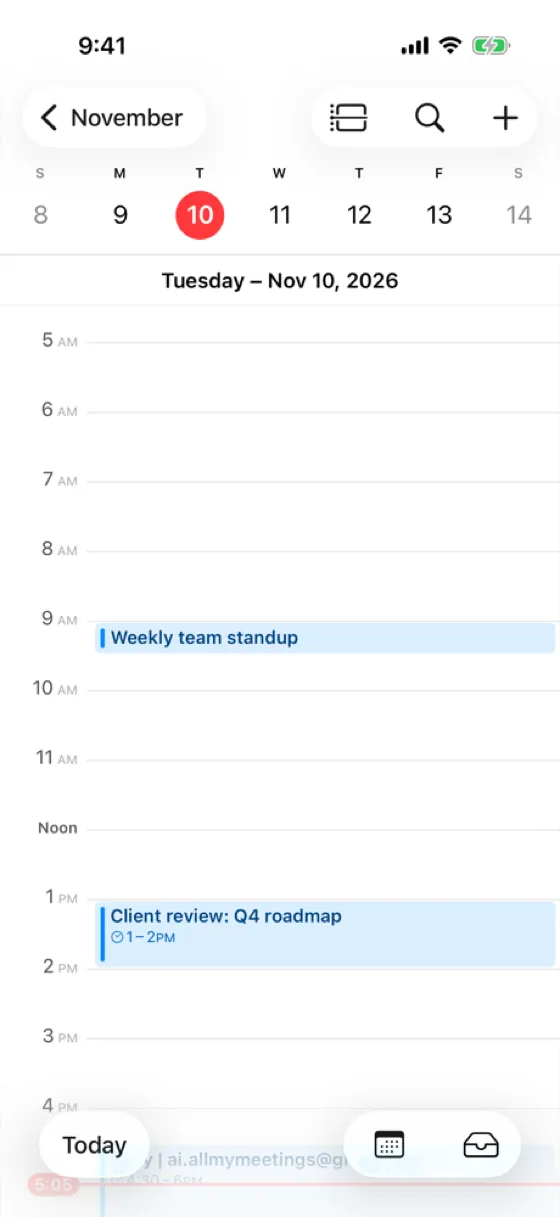
The connection is two-way. Events you create in the iPhone Calendar app on the Exchange calendar appear in Outlook, and edits in Outlook come back to the phone.
Use the Outlook app instead
Microsoft's Outlook app for iPhone is the other option. Install it from the App Store, sign in, and your mail and calendar are in one app, including calendars other people have shared with you in Outlook and Microsoft 365 features such as Teams meeting links and room booking.
The trade-off is that your Outlook events stay inside the Outlook app. Siri, the Calendar widget and other apps that read the iPhone calendar won't see them. Many people use both: the Outlook app for work and the built-in Calendar app for everything else.
Work accounts blocked by Intune or MDM
If your employer manages devices with Microsoft Intune or another mobile device management (MDM) tool, adding a work account in iPhone Settings may fail, or the sign-in page may tell you to use an approved app. That's a Conditional Access policy, not something wrong with your phone. Common setups:
- Only the Outlook app is allowed. Use Outlook for your work calendar. The built-in Calendar app won't connect.
- The device has to be enrolled first. Install Microsoft's Company Portal app and follow your IT team's enrolment steps, then try again.
- The built-in apps are allowed, but with a device passcode or encryption requirement. iOS may ask you to set a passcode before the account will sync.
You can't work around these policies from the phone, and you shouldn't try. Ask IT which apps are approved.
Events not showing: fixes
The Exchange calendar is turned off. Go to Settings, Apps, Calendar, Calendar Accounts, tap the Exchange account and make sure Calendars is on.
The calendar is hidden in the Calendar app. Tap Calendars at the bottom of the Calendar app and tick the calendar under Exchange.
Old events are missing. In Settings, Apps, Calendar, check Sync. If it's set to a limited period, such as one month back, older events never download. Choose All Events.
Changes take a long time to arrive. In Calendar Accounts, set Fetch New Data to Push. Low Power Mode can also delay background updates.
A calendar someone shared with you is missing. Shared calendars don't always come through to the iPhone Calendar app. Open it in the Outlook app or Outlook on the web instead.
It stopped working after a password change. Tap the account in Calendar Accounts. iOS usually asks you to sign in again there. If it doesn't, delete the account and add it again.
Times are off by an hour or more. Check Time Zone Override in Settings, Apps, Calendar. When it's on, every event shows in that one time zone.
Block personal time on your work calendar from your iPhone
Once Outlook is on your iPhone, you can see your work meetings and your personal events in one place. Your colleagues can't. When someone books a meeting in Outlook, Outlook only checks your Outlook calendar. Your dentist appointment in iCloud or Google is invisible, so you get booked on top of it.
AllMyMeetings fixes that by copying events from your personal calendar onto your Outlook calendar as Busy blocks:
- Connect your Outlook or Microsoft 365 account, and your personal iCloud or Google account.
- Create a sync pair from the personal calendar to the Outlook calendar.
- Pick Free/Busy mode so the copies only say "Busy", not what the appointment is.
Because the Busy blocks are real events on your Outlook calendar, they also show up on your iPhone through the Exchange account you just added. The free plan covers one one-way Free/Busy sync. Two-way sync and full event details are on Pro at $5 a month.
If your company has blocked third-party apps in Microsoft 365, AllMyMeetings needs an admin to approve it too. The Outlook calendar sync page explains what that request looks like.
Frequently asked questions
Why won't my work Outlook calendar sync to iPhone?
The most common reason is your company's security policy. Many Microsoft 365 tenants use Intune or Conditional Access to allow only approved apps, usually the Outlook app, so signing in from iPhone Settings fails or is blocked. Install Outlook from the App Store and sign in there, or ask IT whether the built-in Calendar app is allowed.
Does this work with Outlook.com and Hotmail as well as Microsoft 365?
Yes. Personal Outlook.com, Hotmail and Live addresses and work or school Microsoft 365 accounts all use Microsoft Exchange behind the scenes. Add them under Settings, Apps, Calendar, Calendar Accounts. We tested the Microsoft Exchange route with an Outlook.com account, and it is the one option that covers both kinds of account.
Can I edit Outlook events from the iPhone Calendar app?
Yes. An Exchange account is a two-way connection, so events you create, move or delete in the iPhone Calendar app change in Outlook too, usually within a minute or two when Fetch New Data is set to Push. That's different from a subscribed calendar, which is read-only.
Will my personal iPhone events show up in Outlook?
No. Adding Outlook to your iPhone shows both calendars side by side on the phone, but nothing is copied between them. Colleagues checking your availability in Outlook still see you as free during personal events. To fix that, copy your personal events onto the Outlook calendar as Busy blocks with a sync tool.
Start with AllMyMeetings for free and have your personal events block time on Outlook.
Outlook calendar sync · How to sync Google Calendar with Outlook
Ready to sync your calendars?
AllMyMeetings keeps Google, Outlook, and iCloud calendars in sync automatically. No card: your 14-day Pro trial starts when you connect your first calendar, and the free plan stays free after.
Get started for free