iCloud Calendar not syncing: fixes
An event you added on your iPhone isn't on your Mac, your family can't see the dentist appointment, or Outlook stopped showing your iCloud calendar. Here's what to check, device by device.
Short answer: check that every device is signed in to the same Apple Account and has iCloud Calendar turned on, that new events are being saved to an iCloud calendar rather than one stored only on the device, and, for Outlook and other apps, that the app-specific password still works. Then go to your device below.
iPhone
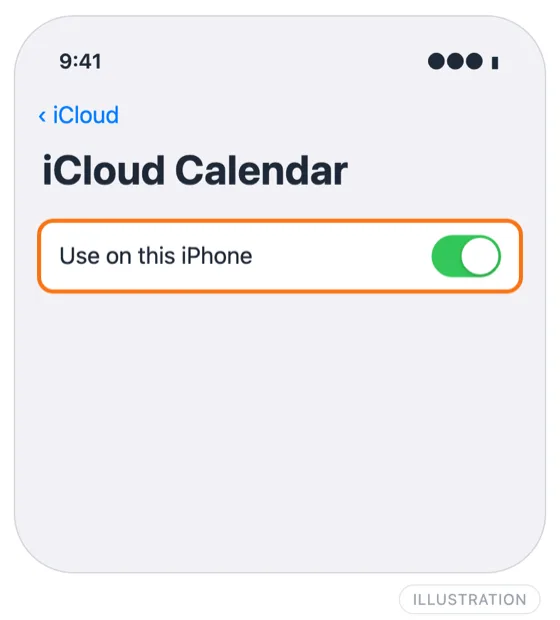
- Turn iCloud Calendar on. Open Settings, tap your name, then iCloud. Find iCloud Calendar in the list of apps using iCloud (tap See All if it's not shown) and make sure Use on this iPhone is on. If it's already on, turning it off and on again makes the iPhone download your calendars from iCloud again. Your events stay safe in iCloud while it's off.
- Check the default calendar. In Settings, Apps, Calendar, look at Default Calendar. If it's an "On My iPhone" calendar or a Gmail or Exchange one, new events never go to iCloud. Pick an iCloud calendar.
- Show the calendar. In the Calendar app, tap Calendars and tick your iCloud calendars.
- Check the account. Every device has to be signed in to the same Apple Account. Compare the name at the top of Settings on each one.
- Check data settings. Low Data Mode on Wi-Fi or mobile data, and Low Power Mode, can pause syncing.
- Check iCloud storage. If your iCloud storage is full, new changes may not upload. Settings, your name, iCloud shows how much is left.
- Check Apple's status. If everything looks right, look at Apple's System Status page for an iCloud Calendar problem.
Mac
- Turn iCloud Calendar on. Open System Settings, click your name, then iCloud, and make sure iCloud Calendar is on (it may be under See All).
- Refresh. In Calendar, choose View, then Refresh Calendars.
- Check the default calendar. In Calendar, choose Calendar, then Settings, then General, and make sure Default Calendar is an iCloud calendar.
- Check the account. The Apple Account in System Settings must be the same one your iPhone uses.
- Turn it off and on. If one calendar is stuck, switch iCloud Calendar off and back on in System Settings. Your calendars download again from iCloud.
iCloud for Windows / Outlook
There are two ways iCloud Calendar reaches Outlook on Windows, and each fails differently.
Classic Outlook with iCloud for Windows:
- Open iCloud for Windows and check you're signed in to the right Apple Account.
- In Calendars and Contacts, make sure Automatically sync your iCloud calendars and contacts to Microsoft Outlook is on.
- Close Outlook completely and open it again.
- Apple only supports this with the classic version of Outlook and needs an @icloud.com address on your account. If you've moved to new Outlook, it won't work; use the next option instead.
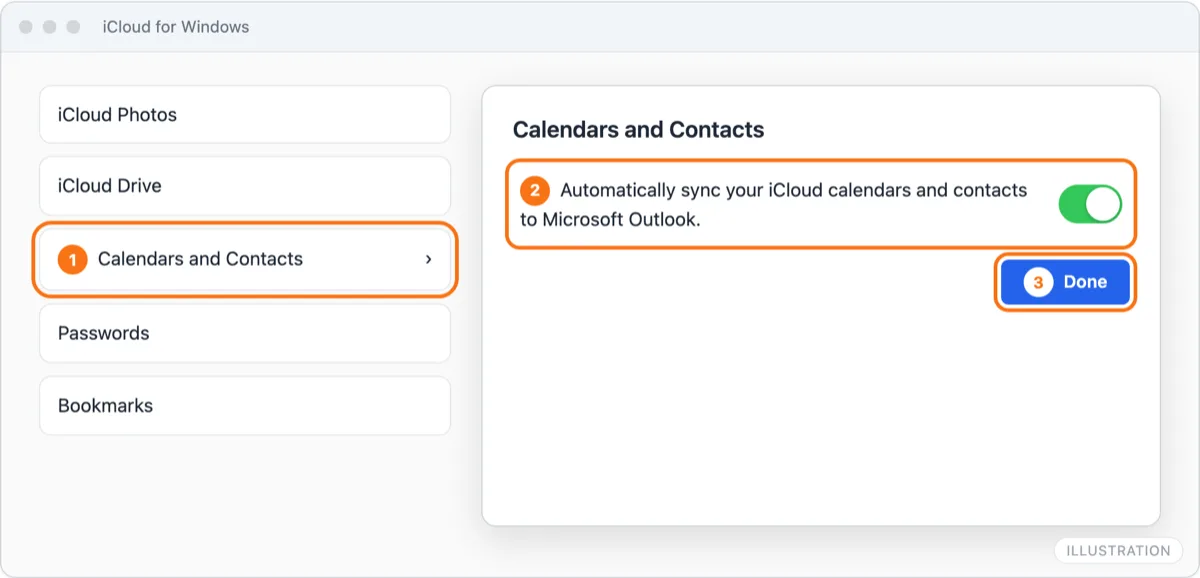
Illustration of iCloud for Windows. The labels match Apple's.
iCloud account added to new Outlook or Outlook for Mac:
- Remove the iCloud account from Outlook and add it again.
- If Outlook asks for a password rather than opening Apple's sign-in page, it needs an app-specific password, not your Apple Account password. See the next section.
A public iCloud calendar subscribed in Outlook is a read-only copy that Outlook refreshes every few hours at best. If it shows old events, wait or remove and re-add it. If it shows nothing, check Public Calendar is still on for that calendar in iCloud.
Third-party apps and app-specific passwords
Apps outside Apple's own, such as Outlook (older versions), Android CalDAV apps, Thunderbird and sync services, sign in to iCloud with an app-specific password. When one of them suddenly stops syncing, the password is the first suspect.
- You changed your Apple Account password. That revokes every app-specific password at once. Create new ones and reconnect each app.
- You used your normal password. Apps that connect over CalDAV need an app-specific password. Your Apple Account password won't work there.
- The password was revoked. Check the list at account.apple.com, under Sign-In and Security, then App-Specific Passwords.
- It was mistyped. App-specific passwords are case-sensitive and the dashes are part of them. Paste rather than type.
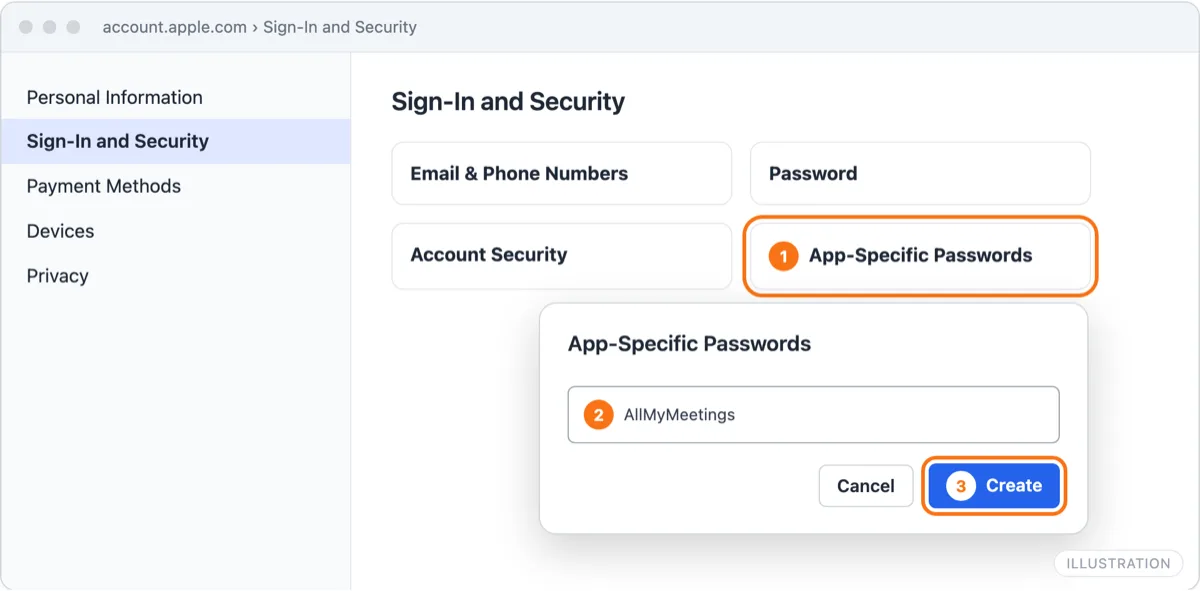
Illustration of account.apple.com. The labels match Apple's.
AllMyMeetings connects to iCloud the same way. If your iCloud account in AllMyMeetings shows a Reconnect button on the Calendar Accounts page, generate a new app-specific password and reconnect with it. Apple doesn't notify outside apps of changes, so even when it's working, AllMyMeetings checks iCloud every five minutes rather than instantly. If your aim is to get iCloud events onto a Google or Outlook calendar reliably, iCloud calendar sync explains how that works.
Frequently asked questions
Why did my iCloud calendar stop syncing?
The most common causes are iCloud Calendar being switched off on one device, the devices being signed in to different Apple Accounts, and, for third-party apps and Outlook, an app-specific password that stopped working. Changing your Apple Account password revokes every app-specific password at once, so any app connected that way breaks until you create a new password and reconnect.
How long does iCloud Calendar take to sync between devices?
Between your own Apple devices, changes usually appear within a minute or so when both are online. Outside apps are slower, because Apple doesn't notify them of changes: they check on a schedule. A public iCloud calendar subscribed to in Google or Outlook can take many hours to update.
Ready to sync your calendars?
AllMyMeetings keeps Google, Outlook, and iCloud calendars in sync automatically. No card: your 14-day Pro trial starts when you connect your first calendar, and the free plan stays free after.
Get started for free