How to merge Google Calendars
You have a work Google calendar and a personal one, and you want one schedule. Google can't merge them, but depending on what you need, you can move, overlay or sync them.
Short answer: you can't merge two Google calendars into one. Google has no merge button, within one account or across two. What you can do depends on what you're after:
- One tidy calendar instead of two. Move the events across, or export one calendar and import it into the other, then delete the empty calendar.
- One view of both. Show both calendars side by side in Google Calendar, which only takes a share between accounts.
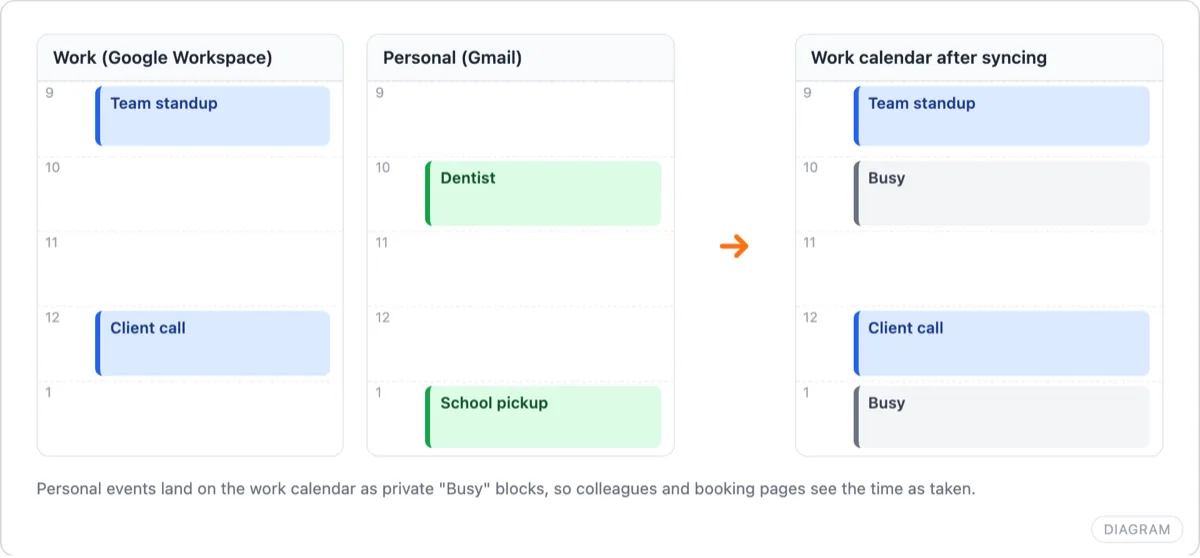
- Both calendars showing you as busy. Sync them, so events on one appear as Busy blocks on the other.
People usually mean the third one. If your work calendar can't see your dentist appointment, a coworker will book over it, however neatly you've arranged your view.
Move events between calendars
Use this when one calendar has outlived its purpose, such as an old project calendar inside your own account.
One event at a time:
- In Google Calendar, open the event and click the pencil to edit it.
- In the event details, open the menu that shows the event's calendar and choose the other calendar.
- Select Save.
You can only move events you own. An invitation from someone else stays on the calendar it was sent to.
A whole calendar at once:
- Go to Settings (the gear icon), then Import & export, and select Export. Google downloads a zip file with one .ics file per calendar.
- Unzip it and find the file for the calendar you want to fold in.
- Back in Import & export, choose that file under Import, pick the destination calendar in Add to calendar, and select Import.
- Check the events arrived. Then open the old calendar's settings and delete it.
Import once. Each import adds every event again, and Google doesn't spot duplicates.
View several calendars as one
Google Calendar already shows every calendar you've ticked under My calendars and Other calendars in a single grid. Give each one its own color and you have one view.
To get a second Google account's calendar into that view:
- In the account that owns the calendar, open Settings, click the calendar under Settings for my calendars, and go to Share with specific people or groups.
- Click Add people and groups, enter your other Google address and choose a permission, such as See all event details.
- In your other account, open the email from Google and add the calendar. It appears under Other calendars.
That fixes your view, but nothing has been copied. When a coworker looks at your work calendar's availability, the shared personal calendar isn't part of it. Workspace admins can also block sharing outside the organization, in which case the share won't go through.
Merge two Google accounts' calendars with a sync
If the point is that each account should know when you're busy, copy the events. A sync tool reads one calendar and writes matching events onto the other, so they count in free/busy, "find a time" and booking pages.
AllMyMeetings does this between Google accounts, and with Outlook and iCloud too. Keep them in sync free:
- Connect both Google accounts.
- Create a sync pair from one calendar to the other, one-way or two-way.
- Choose a mode. Free/Busy copies only a "Busy" block, which keeps personal details off a work calendar. Full Details suits two calendars that are both private to you.
Google notifies AllMyMeetings as soon as an event changes, so copies usually appear within seconds. Each copy carries a hidden marker naming the event it came from, so it's never copied back and two-way sync can't loop. Copies never include attendees, so nobody gets an invitation.
The free plan covers two accounts and one one-way Free/Busy sync, which is the common case: personal events blocking time on a work calendar. Two-way sync and full details are on Pro at $5 a month.
On iPhone
The iPhone Calendar app shows every calendar from every account you've added in one view, which is as close to merged as it gets on a phone.
- Add each Google account in Settings, Apps, Calendar, Calendar Accounts.
- In the Calendar app, tap Calendars and tick the ones you want to see.
- To move an event, open it, tap Edit, change Calendar to the other one, and tap Done.
Shared Google calendars don't show on iPhone until you switch them on in Google's Calendar sync settings. Like Google's own view, the phone only shows calendars together. To make one calendar block time on another, you still need a sync.
Frequently asked questions
Can I combine two Google calendars into one?
Not with a merge button. Within one account you can move events from one calendar to another, or export one calendar and import it into the other, then delete the original. Across two Google accounts you can import once, share one calendar with the other account to view both, or sync them so each calendar shows the other's busy time.
Will merging duplicate events?
It can. Importing the same export twice creates every event twice, and Google doesn't remove duplicates for you. Sharing or overlaying calendars never duplicates anything, because nothing is copied. A sync tool that marks its copies, such as AllMyMeetings, won't duplicate either, but running a sync on top of an earlier import will show each event twice.
Can I merge calendars on iPhone?
No. The iPhone Calendar app shows every calendar from every account you add in one view, which looks merged, but each calendar stays separate. To move an event, open it, tap Edit, change the Calendar field, and tap Done. To make one calendar block time on another, you need a sync.
Start with AllMyMeetings for free and have both Google calendars show when you're busy.
Google Calendar sync · How to sync Google Calendar with Apple Calendar
Ready to sync your calendars?
AllMyMeetings keeps Google, Outlook, and iCloud calendars in sync automatically. No card: your 14-day Pro trial starts when you connect your first calendar, and the free plan stays free after.
Get started for free